If you want to include the users’ referral codes in the mailing list that you are sending via MailChimp, or if you just want to send a mass email to all registered users telling them about the new referral program, follow the steps below:
- First, read this article to generate referral links for old customers.
- Install MailChimp for WordPress – https://wordpress.org/plugins/mailchimp-for-wp/
- Install its addon MailChimp User Sync – https://wordpress.org/plugins/mailchimp-sync/
- Once the plugins are installed, you need to set them up.
- Go to MailChimp for WP and enter MailChimp API key. Get your API key here.
- If everything looks good, you will see a Status Connected message in green.
- Go to User Sync Screen. Choose the list you want to sync to.
IMPORTANT: If you only see the First and Last names, make sure that your list has defined the field for a referral code. By default, when creating a list inside MailChimp, you only have Email, First and Last name. What you want to do is add one more field, by clicking on List -> Settings -> List Fields. You will see a screen like the one below. Just add a new text field and hit save.
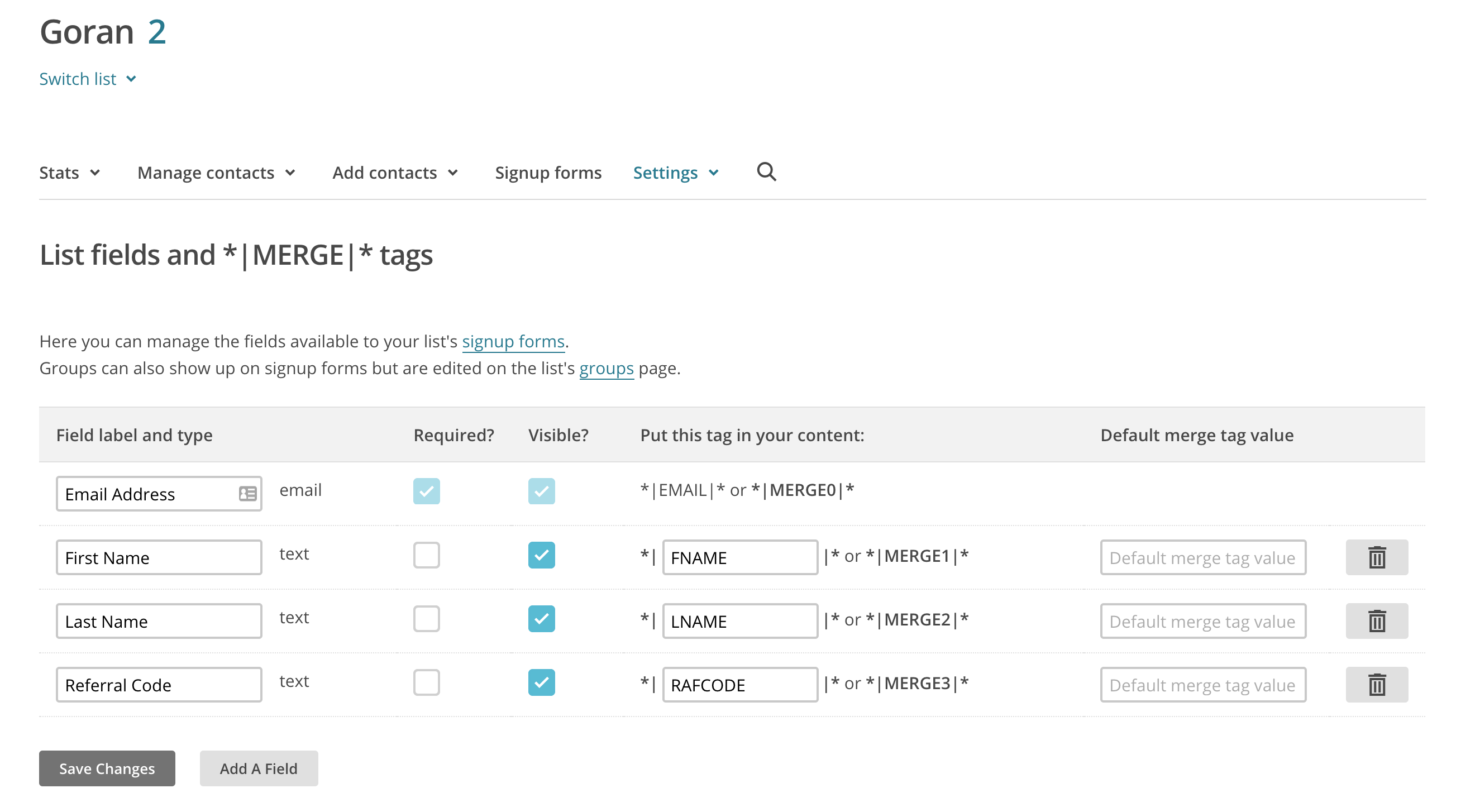
- If you just added a new field in MailChimp, you need to fetch the list again by going to MailChimp for WordPress plugin and clicking on the Renew MailChimp List button.
- Next, on the “User Sync” screen, it should say send additional fields. Choose gens_referral_id as the user meta. On the right, click to connect it to the newly made MailChimp field.
- If you just installed the plugin and want to sync old users, there is a “Manual Sync” button below, that should sync all existing users.
- Now you can use the referral code in your email. Make sure to add it inside a link after ?raf=, for example, if your referral tag is RAFCODE – the link should be: http://www.mysite.com/some-page/?raf=*|RAFCODE|*
Those are all the steps, just make sure to test it out before sending it to your customers.