You can use the hidden coupons feature to hide Dynamic Coupons, Segment Coupons or any coupon that matches a custom pattern.
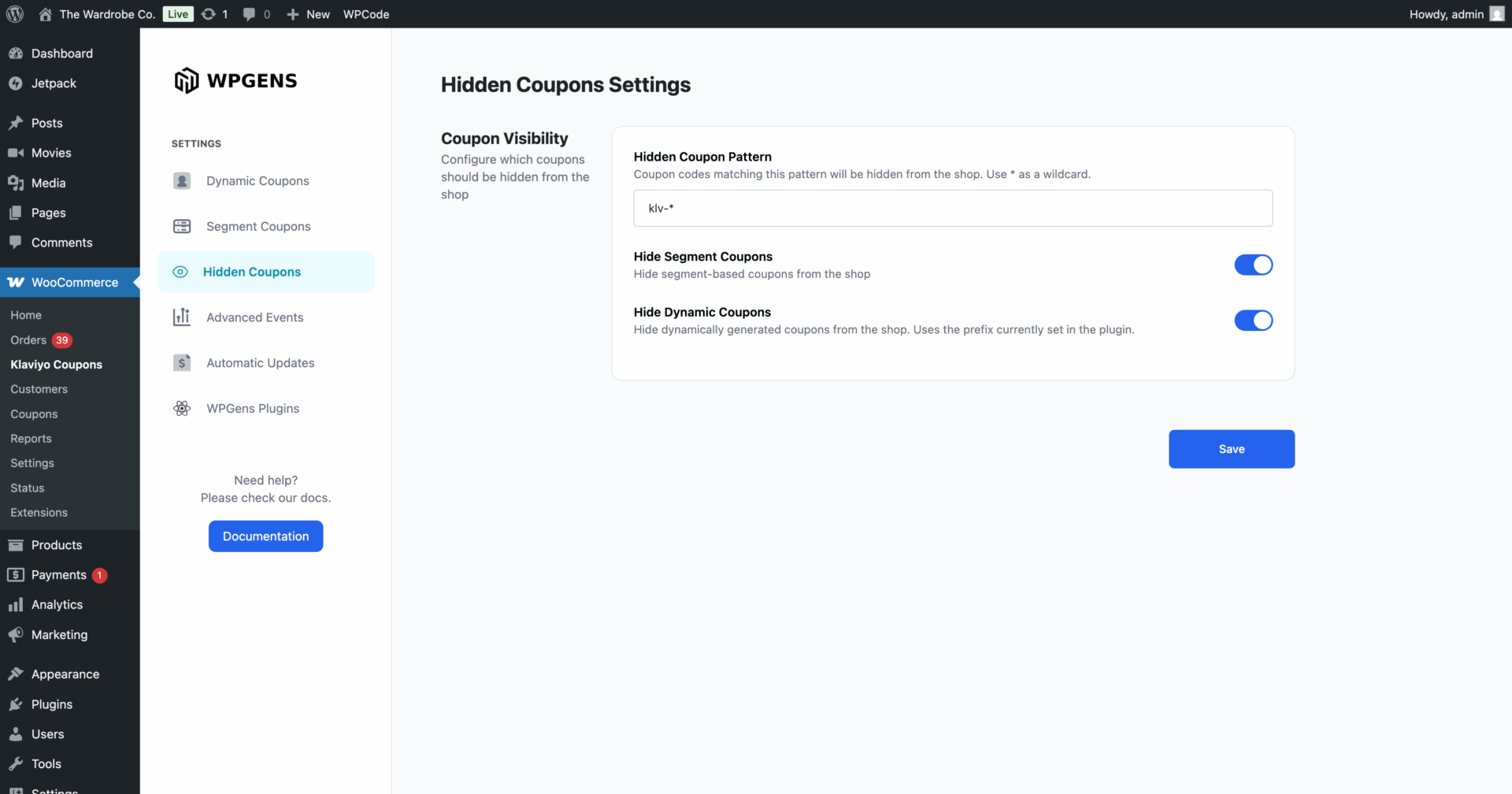
To hide a coupon pattern:
- Go to WooCommerce > Klaviyo Coupons > Hidden Coupons
- In the Hide Coupon Pattern section, enter a pattern to hide. For example, if you enter “KLV-*”, all coupons that start with “KLV-” will be hidden. Use * as a wildcard.
- Click Save.
All coupons matching the set pattern will now be hidden during checkout.
To hide dynamic coupons:
- Go to WooCommerce > Klaviyo Coupons > Hidden Coupons
- Turn on Hide Dynamic Coupons toggle
- Click Save.
All coupons generated using the Dynamic Coupons feature will now be hidden during checkout.
Important: this will hide the dynamic coupons based on the current coupon prefix configured on the Dynamic Coupons page. If you change this prefix after some dynamic coupons have already been created, the coupons with the old prefix will not be hidden. To hide them, use the Hide Coupon Pattern feature described above.
To hide segment coupons:
- Go to WooCommerce > Klaviyo Coupons > Hidden Coupons
- Turn on Hide Segment Coupons toggle
- Click Save.
All coupons generated using the Segment Coupon feature will now be hidden during checkout.