To create WooCommerce coupons using Klaviyo flows, you need to use the Webhook settings created by the plugin. You can find these settings on the Dynamic Coupon page. Follow the steps or the video tutorial below for details.
Step 1: Create a Klaviyo Flow to Trigger Coupon Creation
- In Klaviyo, go to Flows and click Create Flow.
- Name it (e.g., “10% Off for New Customers”) and click Create.
- Set the desired trigger, such as Added to List.
- Save the trigger.
Step 2: Add a Webhook Action in Klaviyo
- In the flow, drag the Webhook action into your sequence.
- From the plugin’s Dynamic Coupons page, copy the Webhook URL and paste it into the Webhook settings in Klaviyo.
- Add two security headers:
woo-api-key(value from the plugin)woo-api-secret(value from the plugin)
- Add the JSON body for the coupon (use the example from the plugin’s instructions).
- Save the webhook.
Step 3 – Create the Coupon Email in Klaviyo
- In the flow, add an Email action after the webhook.
- Name it (e.g., “Coupon Email”) and set the subject
- Choose an existing template or create your own.
- Replace any hardcoded coupon code in the email with the Woo coupon field created by the plugin:
– Search fordckin personalization fields.
– Select Woo coupon and insert it into the email body. - Save the email.
Step 4 – Activate & Test Klaviyo Flow
- Review your flow.
- Turn it on and save.
- Subscribe to the form that triggers the flow.
- Check your email inbox for the coupon email.
Step 5 – Verify Coupon Creation
- In WooCommerce, go to Coupons to see the newly created coupon.
- In Klaviyo, go to the customer’s Profile to see the coupon code and expiry date.
Configuring Coupon Settings
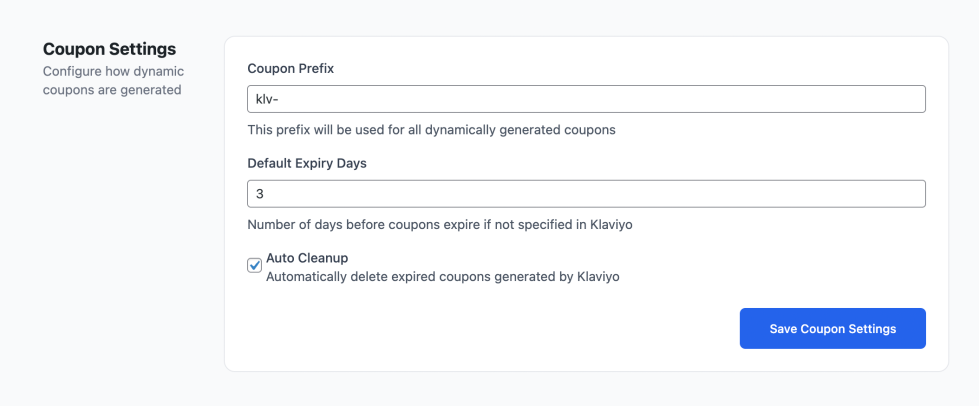
To configure coupon settings:
- Navigate to WooCommerce > Klaviyo Coupons > Dynamic Coupons
- Scroll to Coupon Settings section
- Set the coupon prefix you want to use. All coupons created from Klaviyo webhooks will use this prefix.
- Set the default expiry days. This determines the validity of the created coupons.
- Enable Auto Cleanup to automatically remove expired coupons.