Overview
This integration allows you to automatically sync customer loyalty points data with your Mailchimp audience. Once enabled, the plugin pushes each customer’s points balance and last updated date to Mailchimp as merge fields.
You can then use this data to create customer segments, send personalized campaigns, and build automations based on loyalty activity.
Use cases and benefits
- Create point-based customer segments
- Send personalized emails to loyal customers
- Run re-engagement flows when points are about to expire
- Reward top customers with exclusive offers
Setup instructions
Prerequisites
This integration requires an active Mailchimp account. Please make sure you are logged into your Mailchimp account before proceeding.
- API access to your Mailchimp account
- The correct Audience List ID where customer data should be synced
- The latest version of the Points and Rewards for WooCommerce plugin
Step 1 – Enable Mailchimp integration
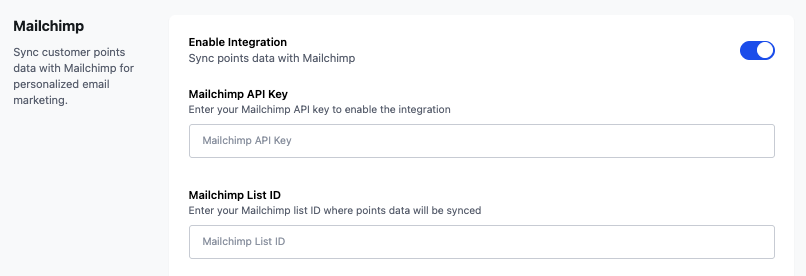
- In your WordPress dashboard, go to Points and Rewards > Settings
- Find the Mailchimp Integration section
- Toggle the Enable Integration option
Step 2 – Create required merge fields in Mailchimp
In your Mailchimp audience, add the following merge fields:
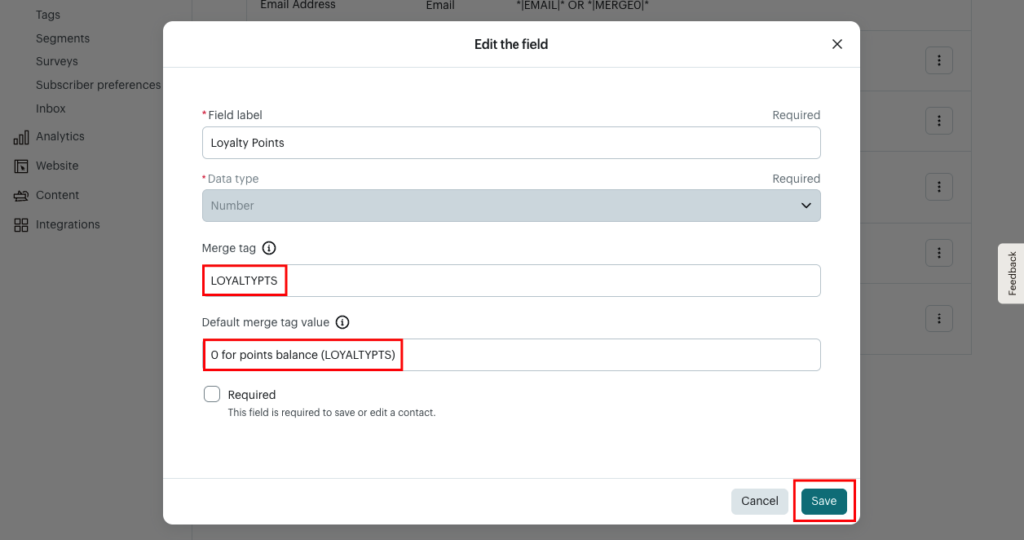
- LOYALTYPTS (Number) – to store the customer’s current points
- PTSUPDATE (Date) – to track the last update date of their points
To do this:
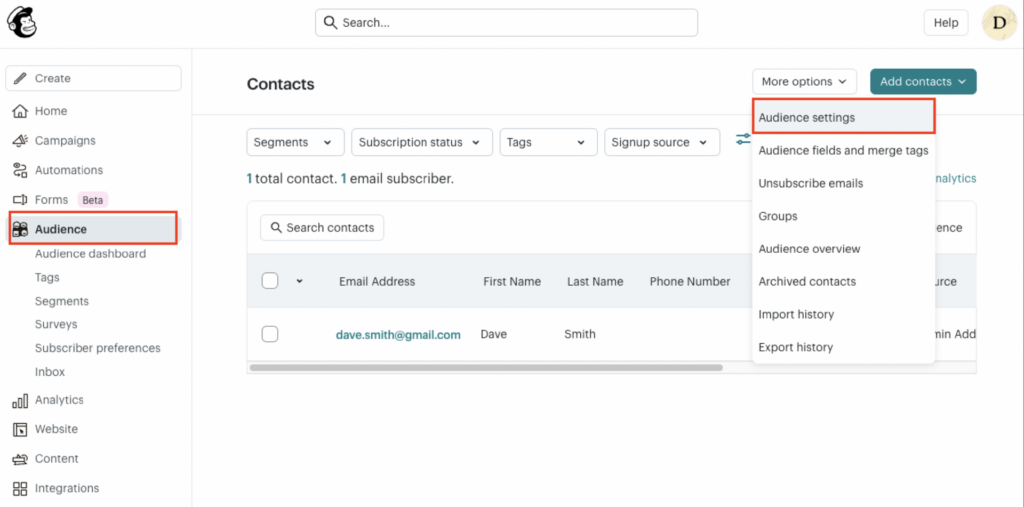
- Go to Audience > More Options > Audience Settings > Audience fields and merge tags
- Click Create a new field and select:
- Number field for LOYALTYPTS
- Date field for PTSUPDATE
- Set their tags to match exactly: LOYALTYPTS and PTSUPDATE
- In the column Default merge tag value, enter a fallback value, such as:
- 0 for points balance (LOYALTYPTS)
- Not yet earned or a blank date like — for PTSUPDATE
- Click Save
Please refer to the screenshots below to follow these steps.
Step 1
Step 2
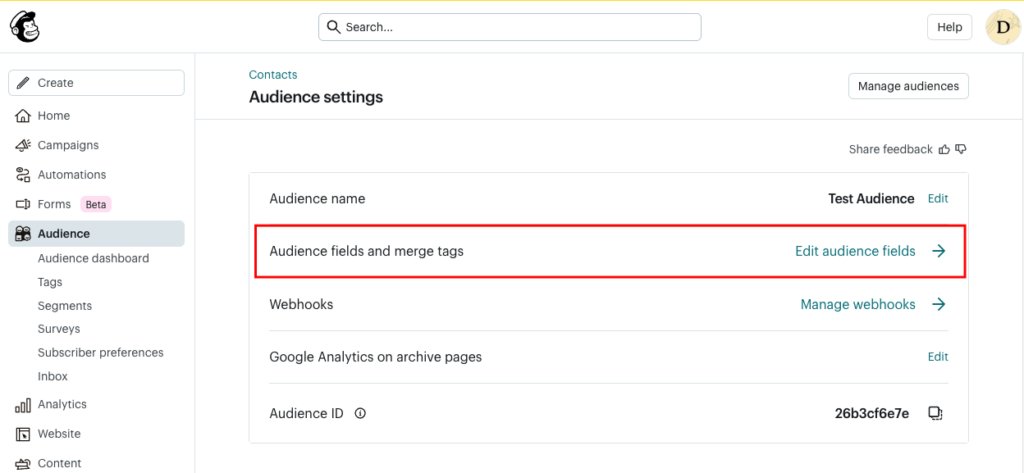
Step 3
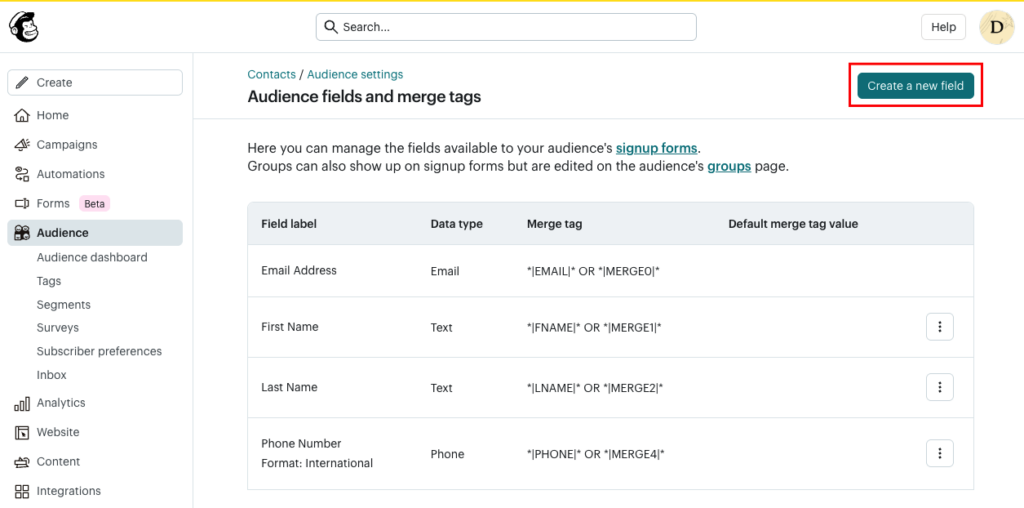
Step 4
Step 3 – Add API key
- Log in to your Mailchimp account
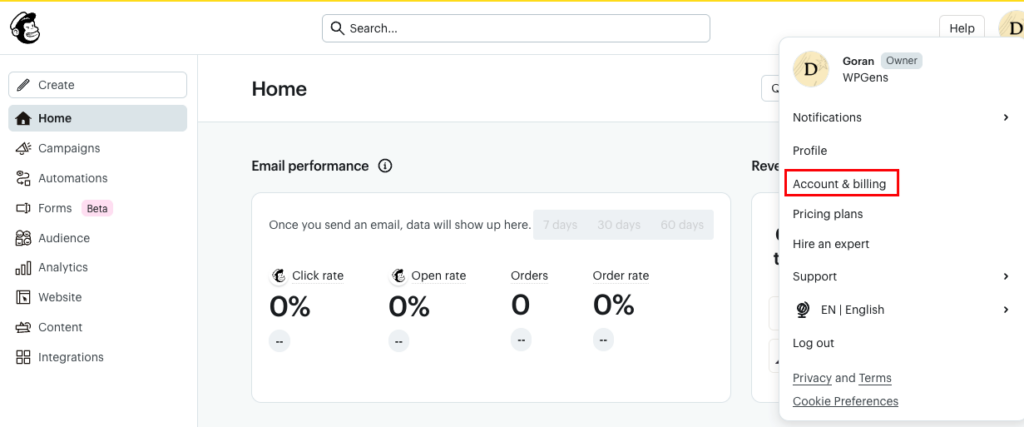
- In the top-right corner, click your profile icon > then click Account & billing
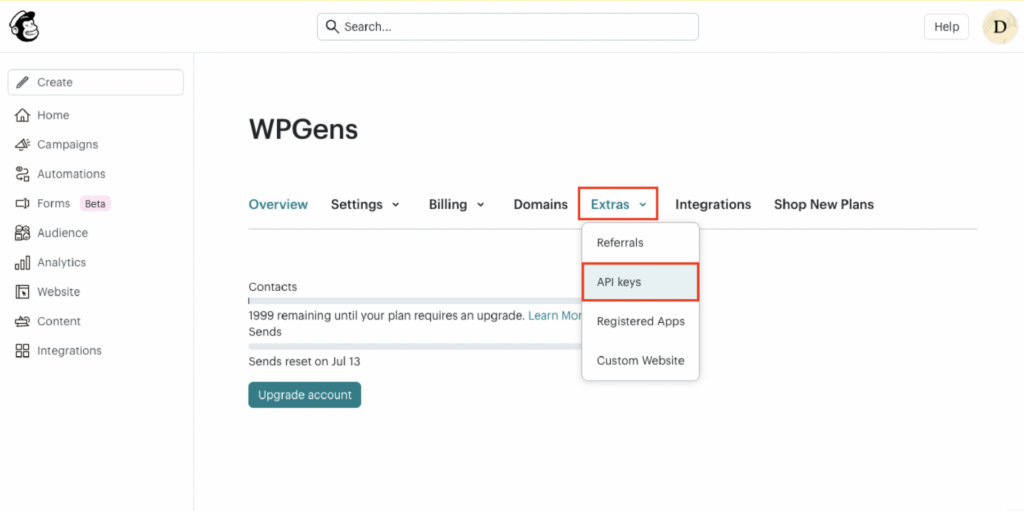
- In the account menu, go to Extras > API keys
- Scroll down to the API keys section
- If you already have an API key, you can use it
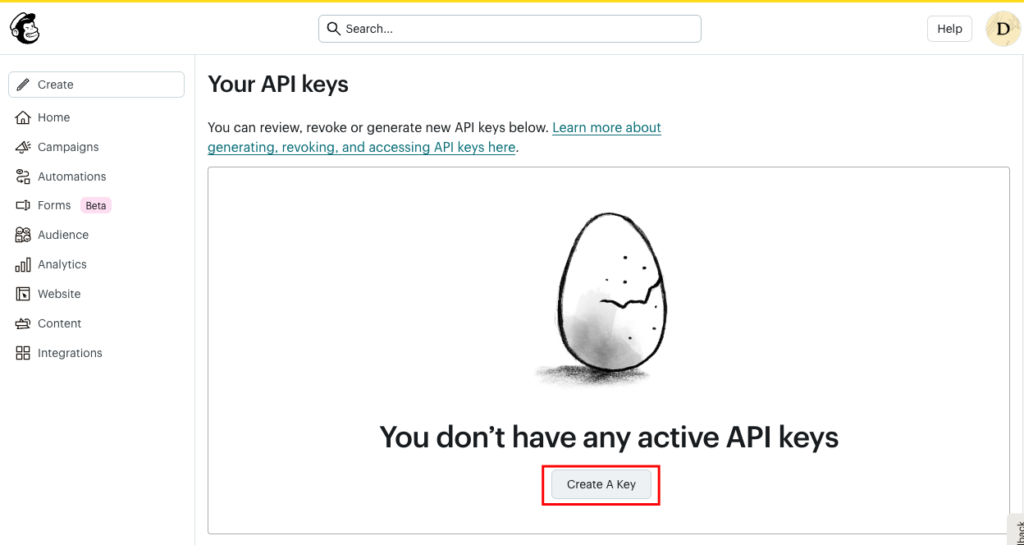
- Otherwise, click Create A Key
- Copy the generated API key
- It will look something like: xxxxxxxxxxxxxxxxxxxxxxxxxxxxxxxx-us20
Paste this key into the Mailchimp API Key field under the Mailchimp Integration in Points & Rewards for WooCommerce plugin.
Keep your API key secure. It grants full access to your Mailchimp account.
Please refer to the screenshots below to follow these steps.
Step 1
Step 2
Step 3
Step 4
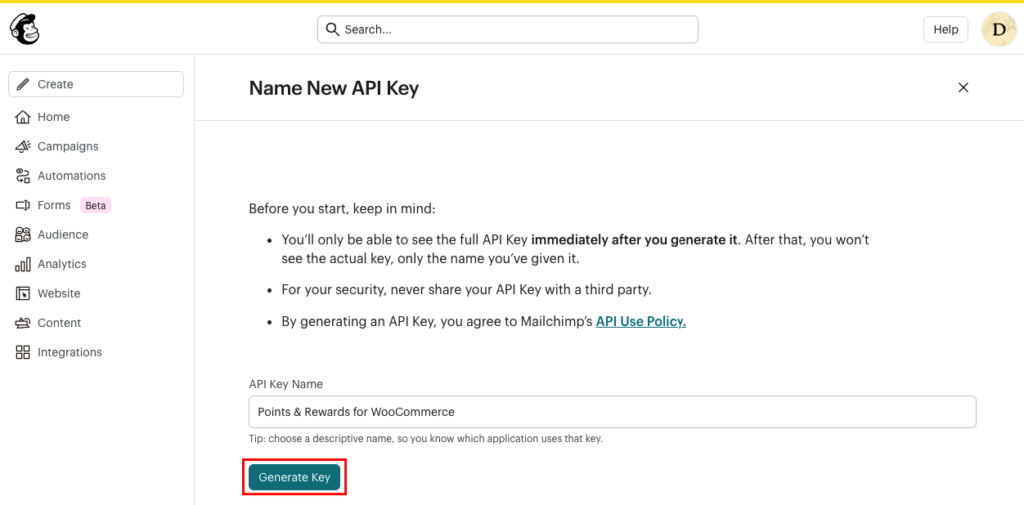
Step 5
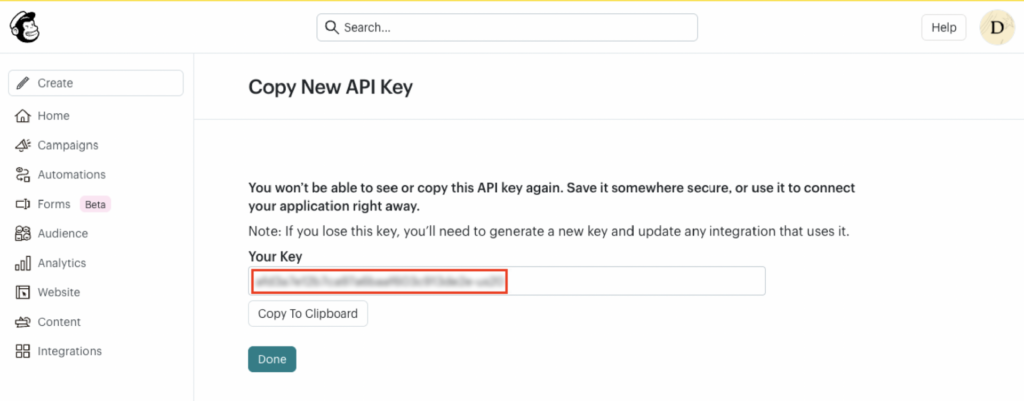
Step 4 – Add Audience ID
- Log in to your Mailchimp account
- In the left sidebar, click Audience
- If you have more than one audience, click Current audience (top-left dropdown) and select the one you want to use.
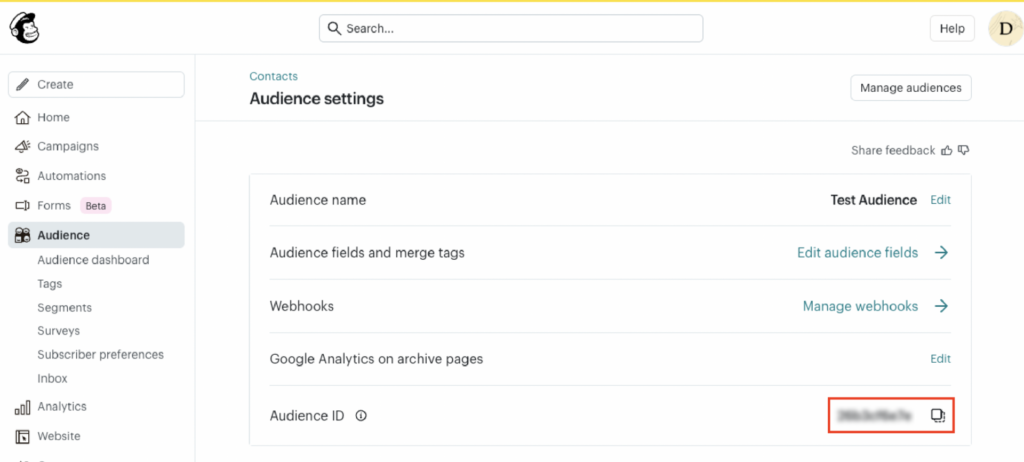
- Click on More Options > Audience Settings
- On this page, you’ll find the Audience ID (also called List ID) as the last option of the first section.
- It looks like: Audience ID: a1b2c3d4e5
- Paste this key into the Mailchimp List ID field under the Mailchimp Integration in Points & Rewards for WooCommerce plugin.
Please refer to the screenshots below to follow these steps.
Step 1
Step 2
How the integration works
Once enabled and connected, the plugin automatically syncs the following customer data to Mailchimp as merge fields:
- LOYALTYPTS – Current points balance
- PTSUPDATE – Date the points were last updated
Data is synced in real-time when points are:
- Earned from purchases
- Earned from reviews or social shares
- Manually adjusted by the admin
- Redeemed for rewards
Common issues & solutions
Merge fields not found?
Check that both LOYALTYPTS and PTSUPDATE merge fields exist in your Mailchimp audience and match the tag names exactly.
API key or audience ID not working?
– Double-check your Mailchimp API key under Account & Billing > Extras > API keys
– Get your Audience List ID from Audience > More Options > Audience Settings > Audience name and defaults
No data syncing?
– Ensure the test customer has earned or used points
– Confirm the customer exists in the Mailchimp audience with a matching email