Overview
This integration allows you to automatically sync customer loyalty points data with Brevo. Once connected, the plugin pushes each customer’s points balance and last update date to Brevo as custom contact attributes.
You can then use this data in Brevo to segment customers, personalize email campaigns, and trigger automated flows.
Use cases and benefits
- Send targeted campaigns to your most loyal customers
- Create dynamic segments based on loyalty point tiers
- Automate re-engagement campaigns when points are about to expire
- Track loyalty activity across your marketing funnel
Setup instructions
Prerequisites
This integration requires an active Brevo account. Please make sure you are logged into your Brevo account before proceding.
Step 1 – Enable Brevo integration
- In your WordPress dashboard, go to Points and Rewards > Settings
- Scroll down to the Brevo Integration section
- Toggle the Enable Integration option
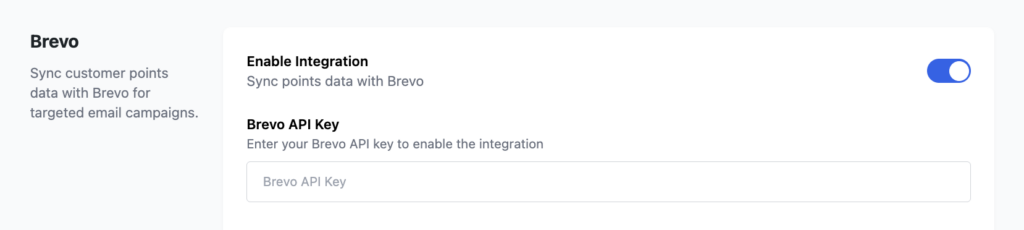
Step 2 – Create required contact attributes
In order for syncing to work, you’ll need to manually create two custom contact attributes in your Brevo account. To create them, go to Contacts > Settings > Contact Attributes, or follow this link https://my.brevo.com/lists/add-attributes.
•   LOYALTY_POINTS_BALANCE (Number)
•   LOYALTY_POINTS_LAST_UPDATED (Date)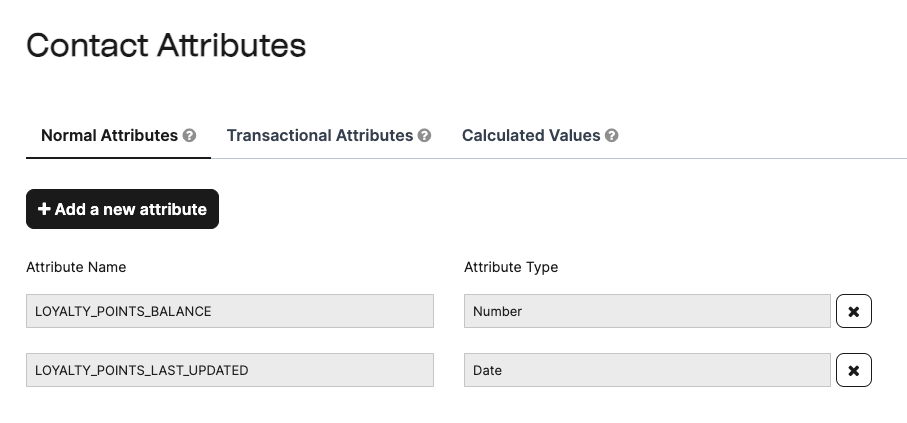
Step 3 – Add your Brevo API key
To enable and retrieve API access for Brevo, follow these steps:
- In the top-right corner, click your profile name and go to SMTP & API
- Under the API Keys section, you’ll see a list of your keys (if any). Click “+ Generate a new API key”
- Give your API key a name (e.g. WooCommerce Points Sync) and click Generate
- Copy and save the API key – this is the key you’ll paste into the plugin settings.
Please refer to the screenshots below to follow these steps.
Step 1
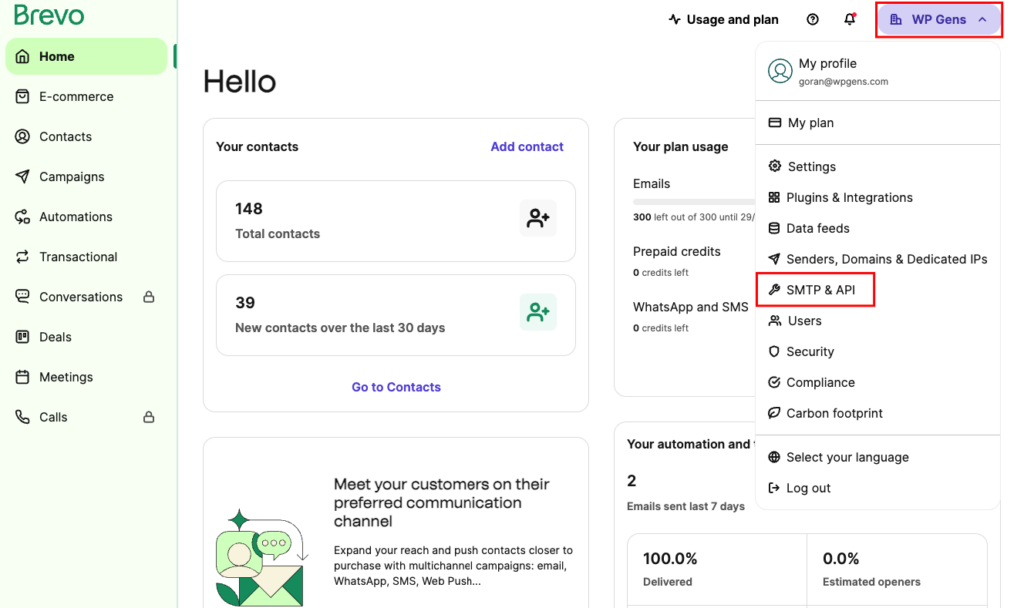
Step 2
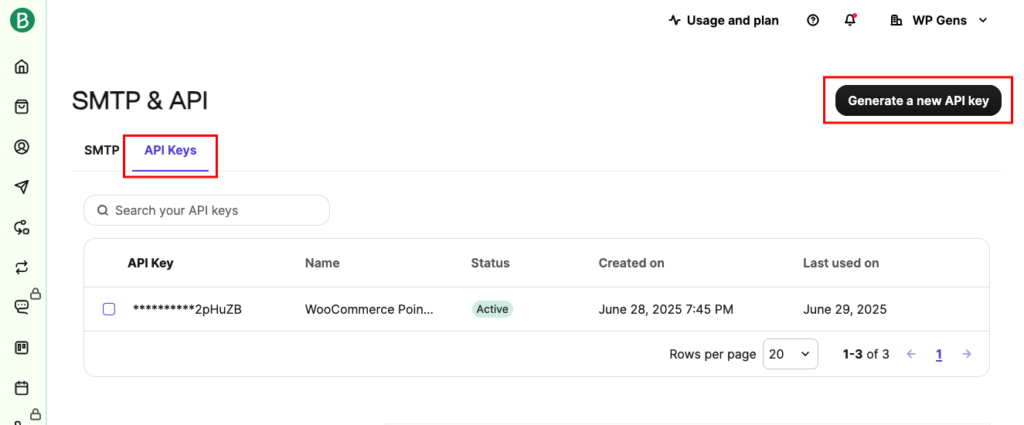
Step 3
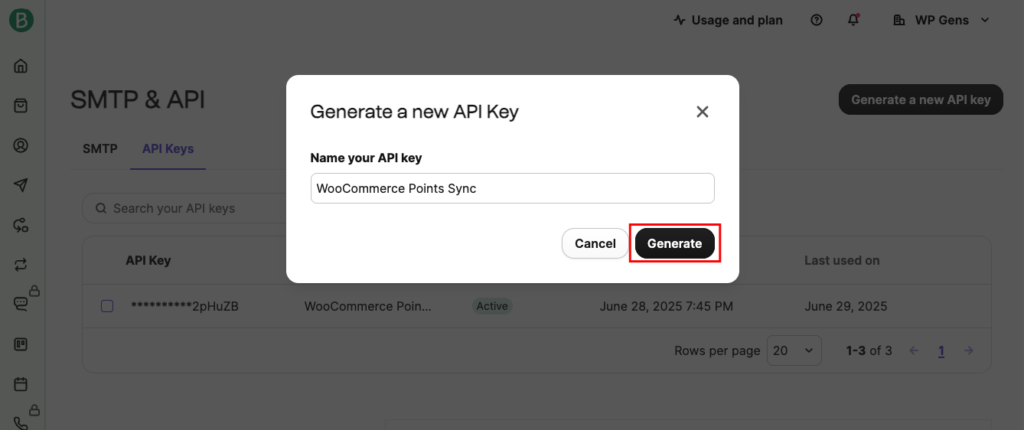
Step 4
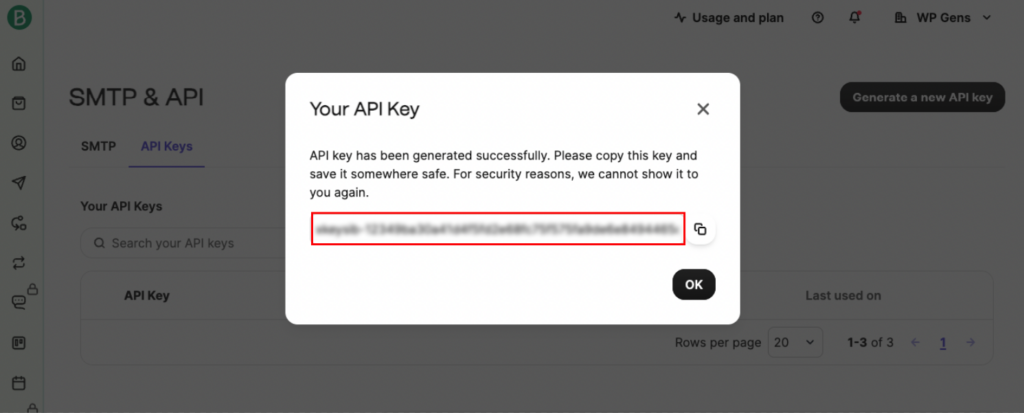
Once you generate your API key, it will appear as active. However, you won’t be able to copy it again, so make sure to save it somewhere secure before closing the window.
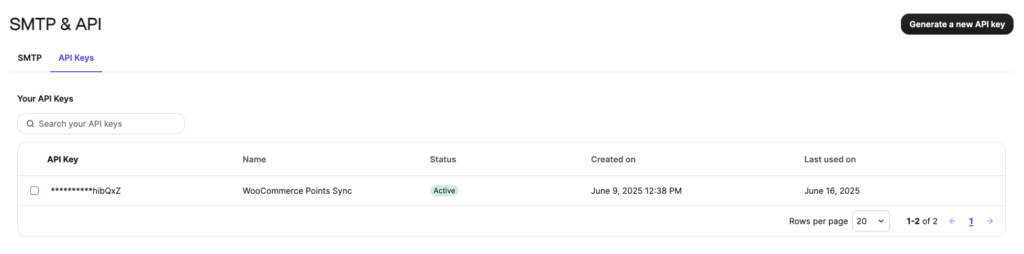
Step 4 – Paste & Connect
- In the plugin integration settings, paste the API key from the previous step
- Click Save Settings to connect the plugin to Brevo
If successfull, you should see a green banner showing the plugin is connected to Judge.me
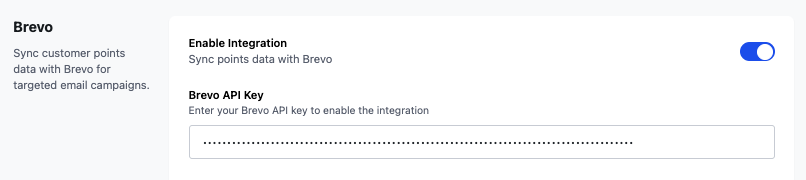
The integration will now begin syncing data automatically.
How the integration works
Once connected, the plugin will automatically sync the following data to Brevo as contact attributes:
- LOYALTY_POINTS_BALANCE – The customer’s current point total
- LOYALTY_POINTS_LAST_UPDATED – The last time their point balance changed
Data is synced in real-time when points are:
- Earned from purchases
- Earned from reviews or social shares
- Manually adjusted by admin
- Redeemed for rewards
Common issues & solutions
Points data not syncing?
Make sure the two required attributes (LOYALTY_POINTS_BALANCE and LOYALTY_POINTS_LAST_UPDATED) exist in Brevo and have the correct types.
API Key error?
Double-check that your Brevo API key is valid and active. You can regenerate it from your Brevo dashboard under SMTP & API.
Sync delays?
While sync is real-time, delays may occur due to server caching or queueing. Try refreshing the contact in Brevo after making changes.