This area allows you to control how points and rewards information is shown to your customers across product pages, cart, and checkout. Customizing these settings ensures a consistent brand experience and clear communication of earning/redeeming opportunities.
You can find all display options under Points & Rewards > Frontend Display
Points Branding
Name your points currency to match your brand voice.
- Points Currency (Singular) – e.g. Point
- Points Currency (Plural) – e.g. Points
Examples:
- Coins / Coin
- Gems / Gem
- Beans / Bean
- Store Credits / Store Credit
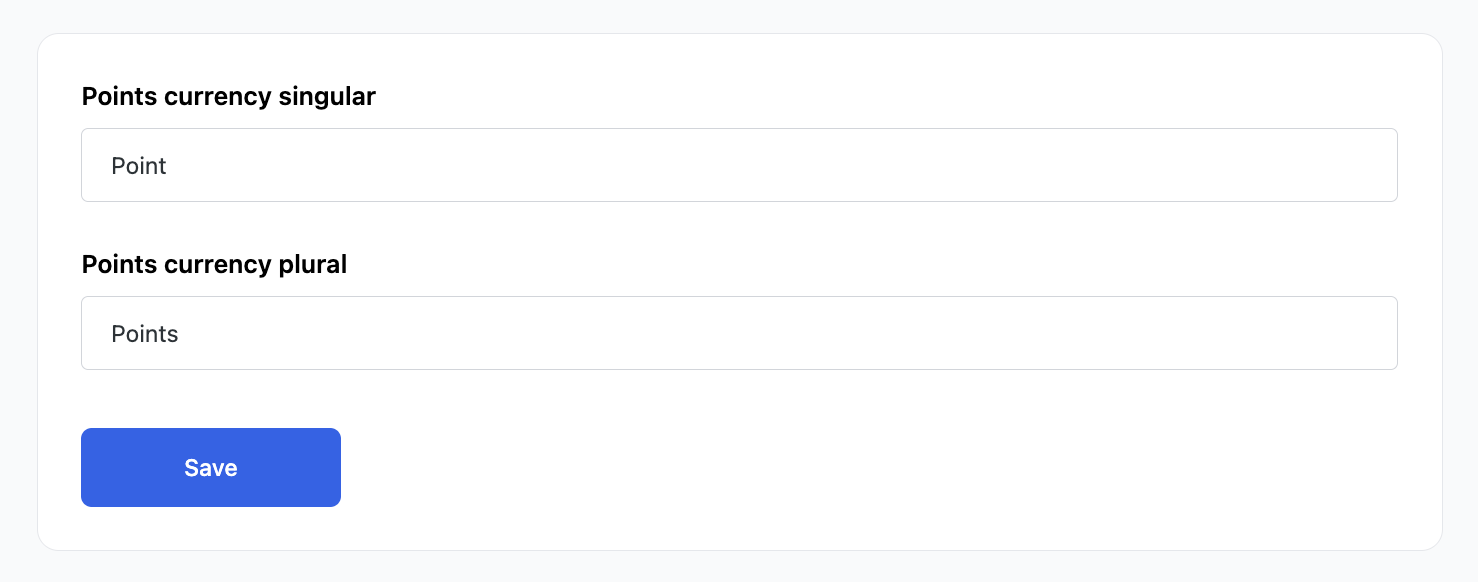
These names will be used wherever point amounts are displayed on your store.
Product Page Settings
Let customers see how many points they’ll earn directly on product pages.
To configure:
Choose how point-earning information appears on product pages.
- Show Points Earning Above Product Price
Enable this option to show how many points customers can earn directly above the product price. Applies only if the “Place Order” earning action is enabled. - Points Earning Template
Customize the display with HTML and dynamic tags:{{points}}– Number of points earned{{points_label}}– “Point” or “Points” (based on quantity){{product_price}}– Product price including currency symbol
Example Template: Earn {{points}} {{points_label}} for this product!
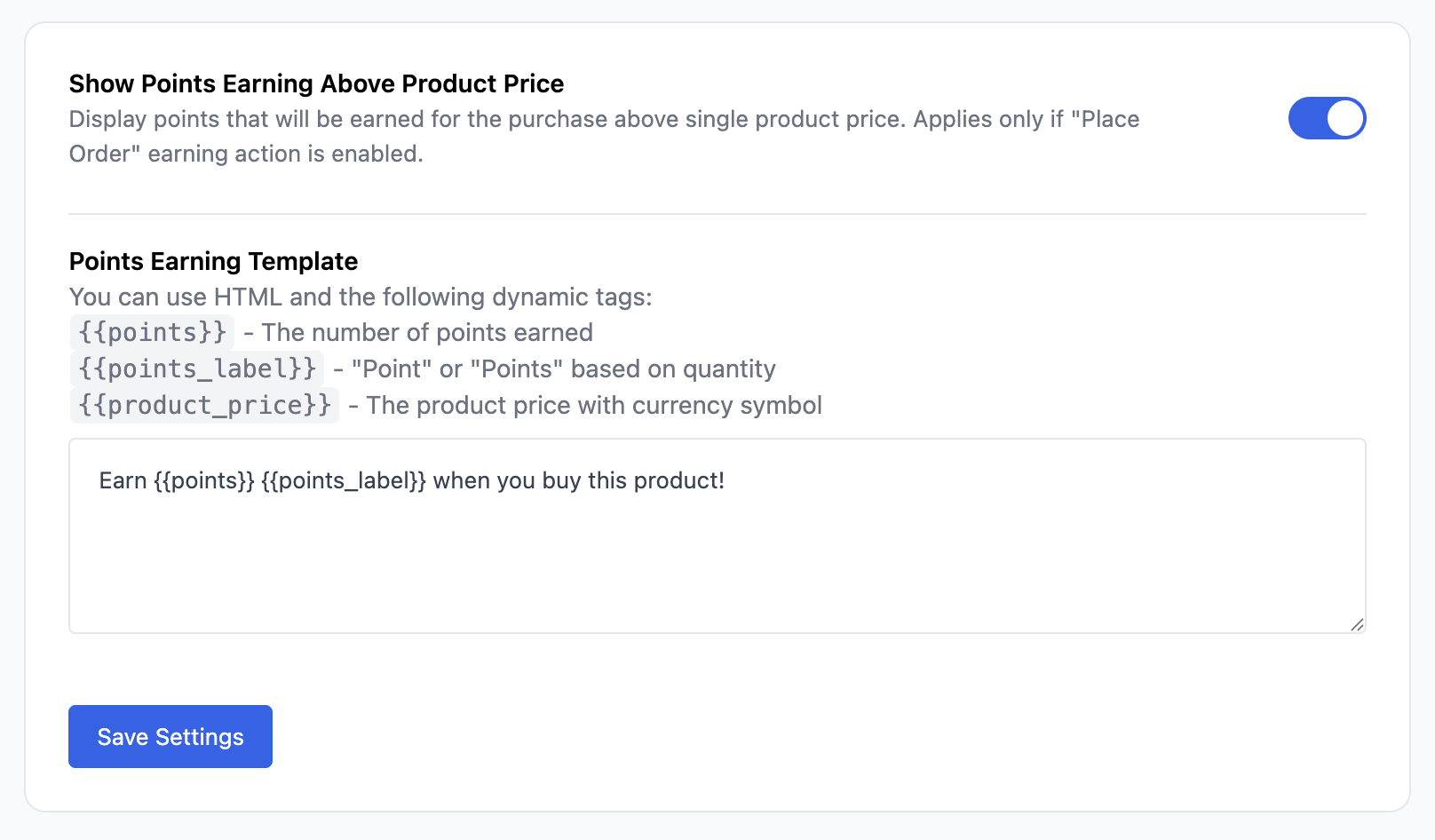
This section uses WooCommerce hooks, so placement may vary slightly by theme.
Auto Open & Hide Redemption Form
Control how the points redemption form behaves during checkout.
Settings include:
- Hide Points Redemption Form on Checkout if Zero Balance: Prevents the form from showing for users with no points.
- Auto Open Points Redemption Form: Automatically expands the form when the checkout page loads, saving the customer a click.
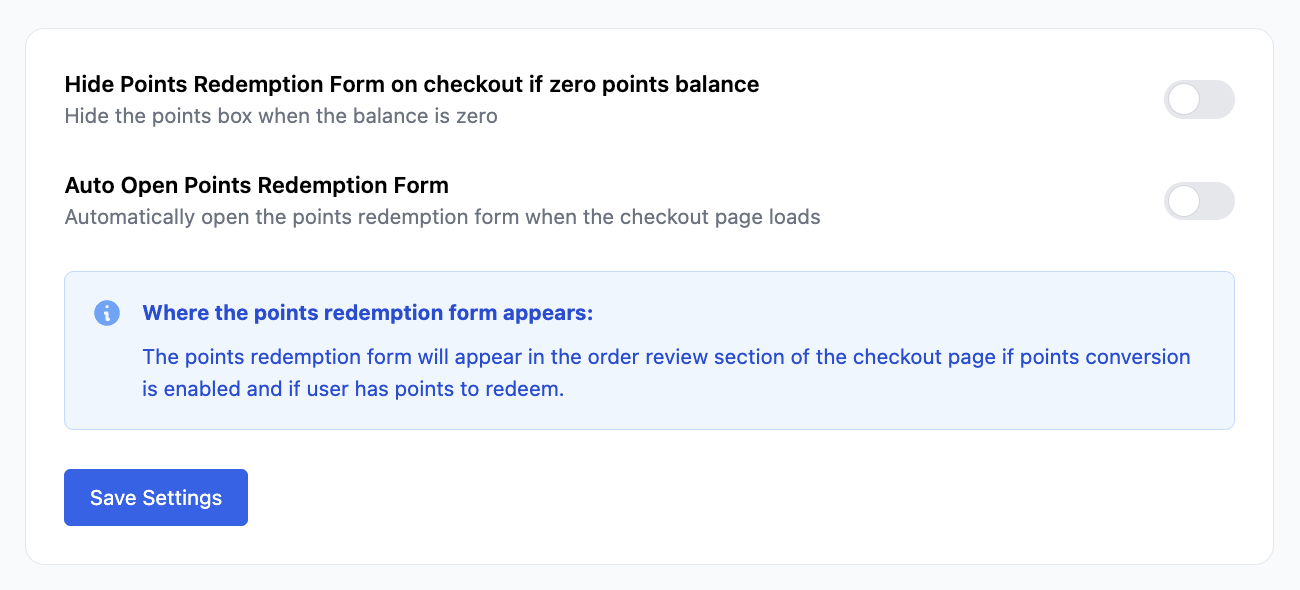
These options improve UX by keeping the interface clean and responsive to the user’s balance.
Points Earning Box (Cart & Checkout)
Show customers how many points they’ll earn for their purchase:
- Show Points Earning – Displays before the checkout button on the cart page (for classic cart templates) and in the order review section on the checkout page.
NOTE: This applies only if the “Place Order” earning action is enabled.
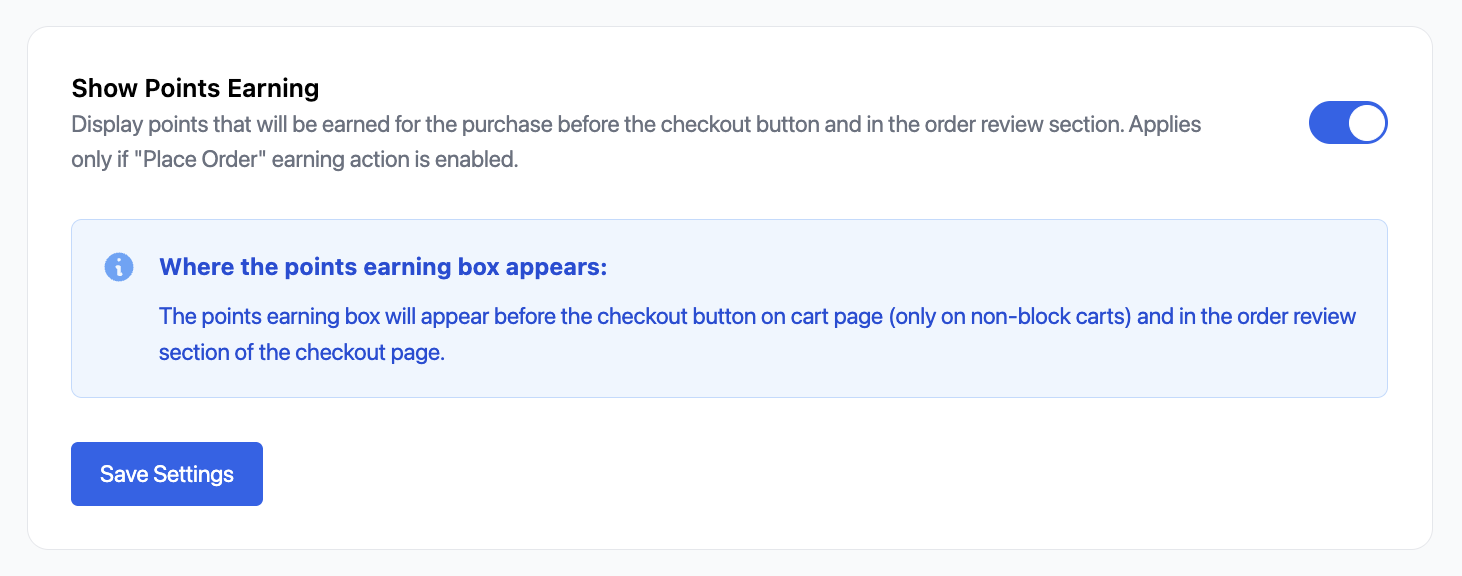
The Points Earning Box is especially helpful to encourage repeat purchases by making rewards more visible.